

Capabilities
- Sync user identities from Okta to ConductorOne
- Promote identities from application users to ConductorOne users
-
Resources supported:
- Groups
- Org roles (requires a super admin token)
- Application assignments
-
Provisioning supported:
- Group membership
- Application assignment
API token permissions and ConductorOne capabilities
ConductorOne’s capabilities depend on the permissions of the API token used to set up the connector:| ConductorOne capability | Read-only admin token | Read-only + app admin + group admin token | Super admin token |
|---|---|---|---|
| Review group membership | |||
| Provision group membership | |||
| Review application assignment | |||
| Provision application assignment | |||
| Review admin roles |
Add a new Okta connector
1
In ConductorOne, navigate to Admin > Connectors and click Add connector.
2
Search for Okta and click Add.
3
Choose how to set up the new Okta connector:
- Add the connector to a currently unmanaged app (select from the list of apps that were discovered in your identity, SSO, or federation provider that aren’t yet managed with ConductorOne)
- Add the connector to a managed app (select from the list of existing managed apps)
- Create a new managed app
4
Set the owner for this connector. You can manage the connector yourself, or choose someone else from the list of ConductorOne users. Setting multiple owners is allowed.
5
Click Next.
Next steps
- If you are the connector owner, proceed to Configure your Okta connector for instructions on integrating Okta with ConductorOne.
- If someone else is the connector owner, ConductorOne will notify them by email that their help is needed to complete the setup process.
Configure your Okta connector
(Optional) Step 1: Create a service account for the API token
If desired, you can create a service account user in Okta that has the permissions for the API token.1
Navigate to Directory > People and click Add person.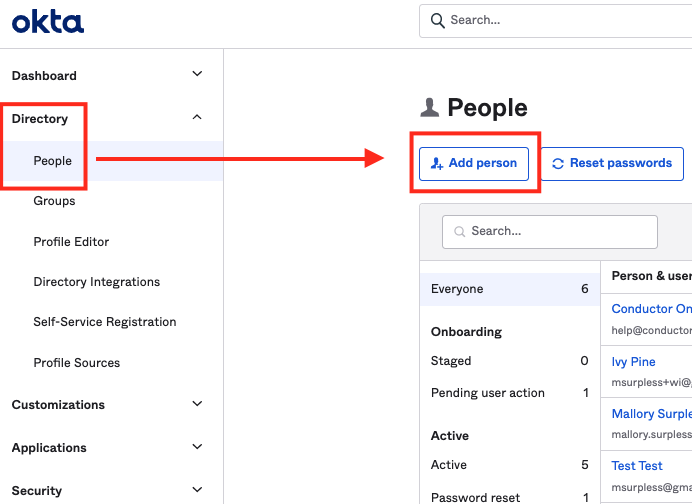
2
Enter the necessary user details to create a user. You might want to use identifiers that make it easily recognizable as a service account, such as First Name: ReadOnly, Last Name: ServiceUser.
3
Set the Password for the account and store it securely in a vault.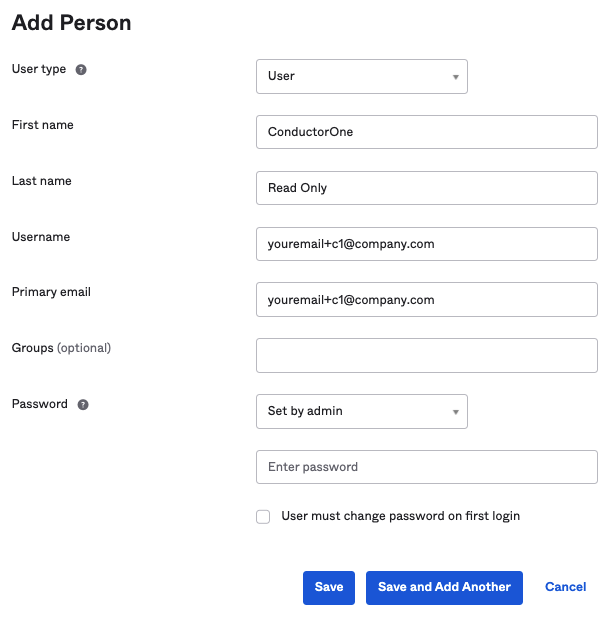
4
Navigate to Security > Administrator and click Add administrator.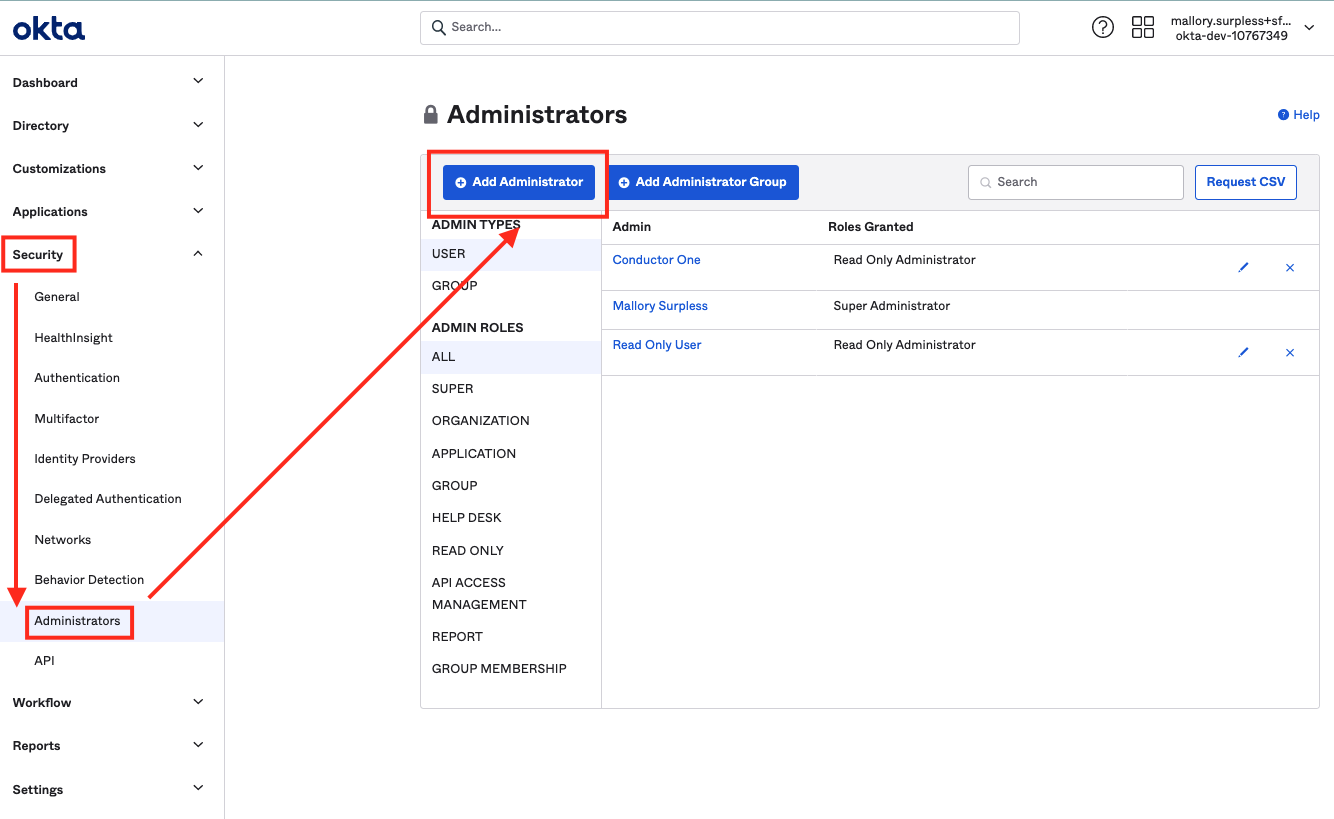
5
Enter the email address for your newly created Service Account to select the user.
6
Select the administrator roles to grant: Read Only Admin, Super Administrator, or a combination of Read Only + Application Admin + Group Admin.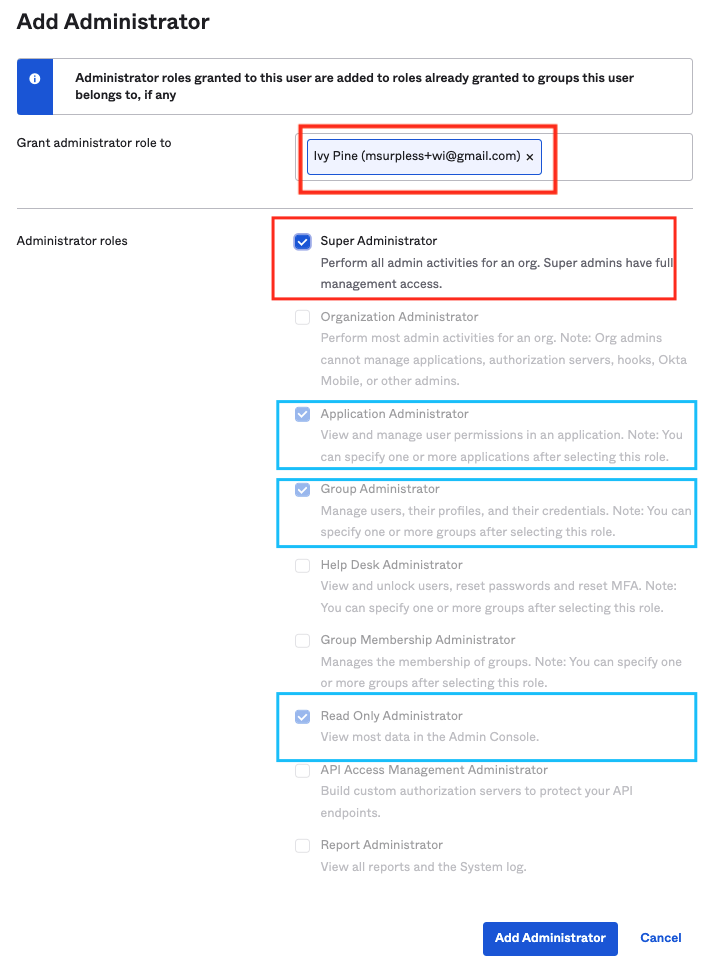
7
Click Add Administrator.
Step 2: Create an API token
1
Log into Okta with the account you’ll use to generate the API token.
The account must have Read Only Administrator, Super Administrator, or a combination of Read Only/App Admin/Group Admin privileges. The permissions on the API token affects what features and functionality are available from ConductorOne. Before you begin, review the chart in API permissions and ConductorOne capabilities to make sure you’re creating a token with the right permissions for your needs.
2
In the Okta console, navigate to Security > API and click Tokens.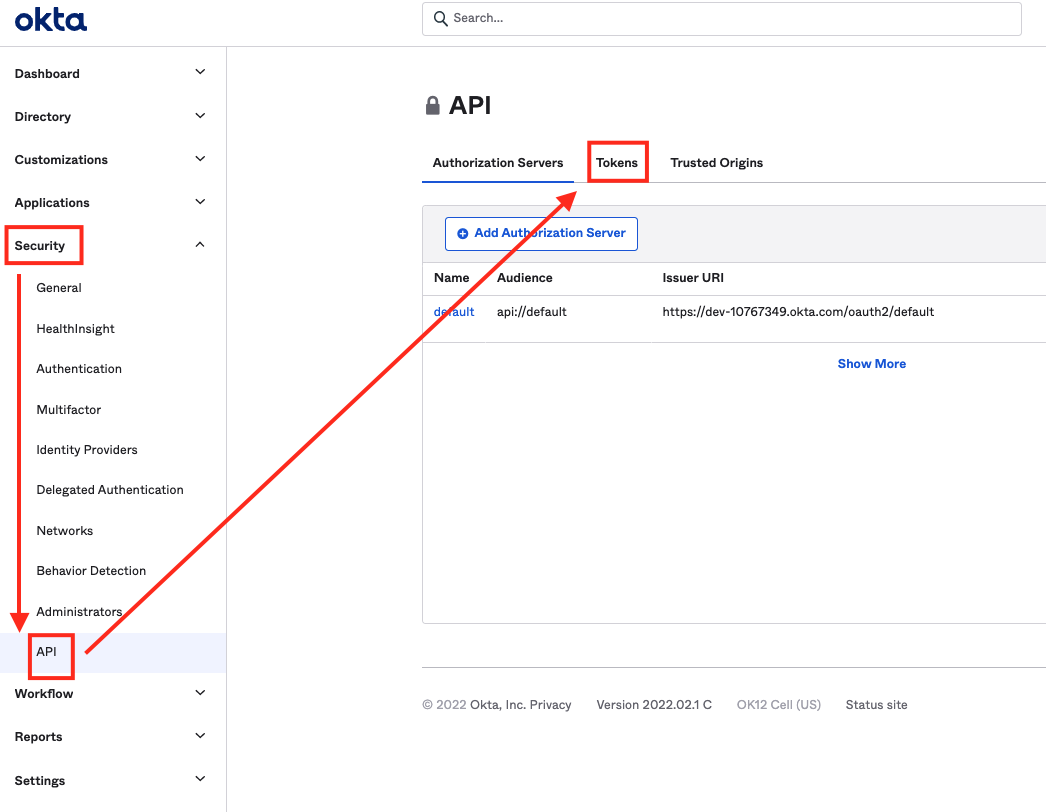
3
Click Create Token.
4
Give your token a name, such as ConductorOne and click Create Token.
5
Copy and save the new API token.
Step 3: Add your Okta credentials to ConductorOne
1
In ConductorOne, navigate to the Okta connector by either:
- Clicking the Set up connector link in the email you received about configuring the connector.
- Navigate to Connectors > Okta (if there is more than one Okta listed, click the one with your name listed as owner and the status Not connected).
2
Find the Settings area of the page and click Edit.
3
Enter your Okta domain (the URL of your Okta instance is
<YOUR DOMAIN>.okta.com) into the Okta domain field.4
Paste your API token into the API key field.
5
Optional. If you want ConductorOne to skip syncing inactive child apps, or to sync deprovisioned users, click the checkboxes accordingly.
6
Click Save.
7
The connector’s label changes to Syncing, followed by Connected. You can view the logs to ensure that information is syncing.